WorkBuddy MCP Connection Setup
This guide walks through connecting your MCP client to the AgileWatch system.
1. Log in to AgileWatch
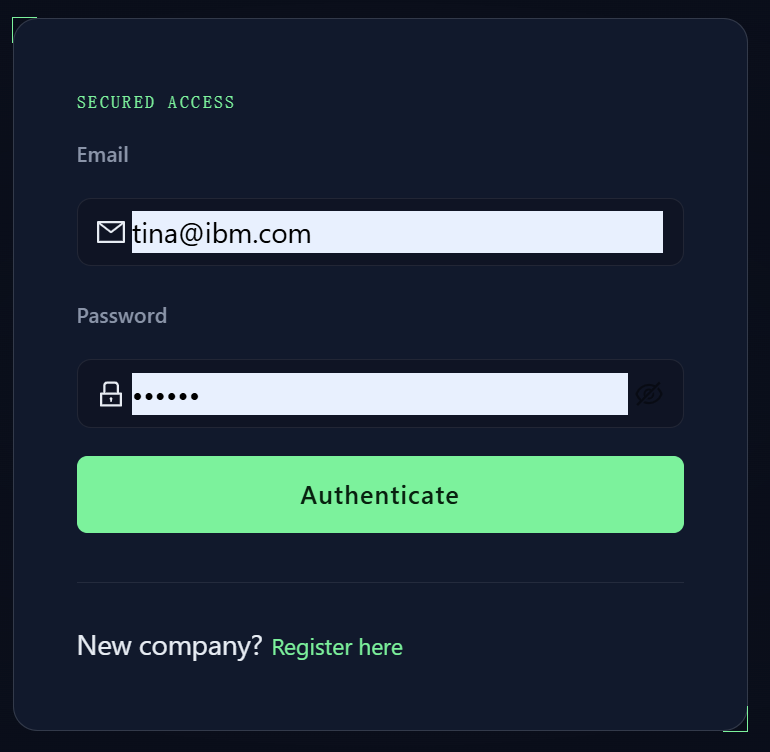
Open https://agilewatch.com/app and sign in with your account.
2. Generate an Auth Token
Once logged in, navigate to your User Profile. If this is your first login, click the Generate New Token button to create an authentication token.
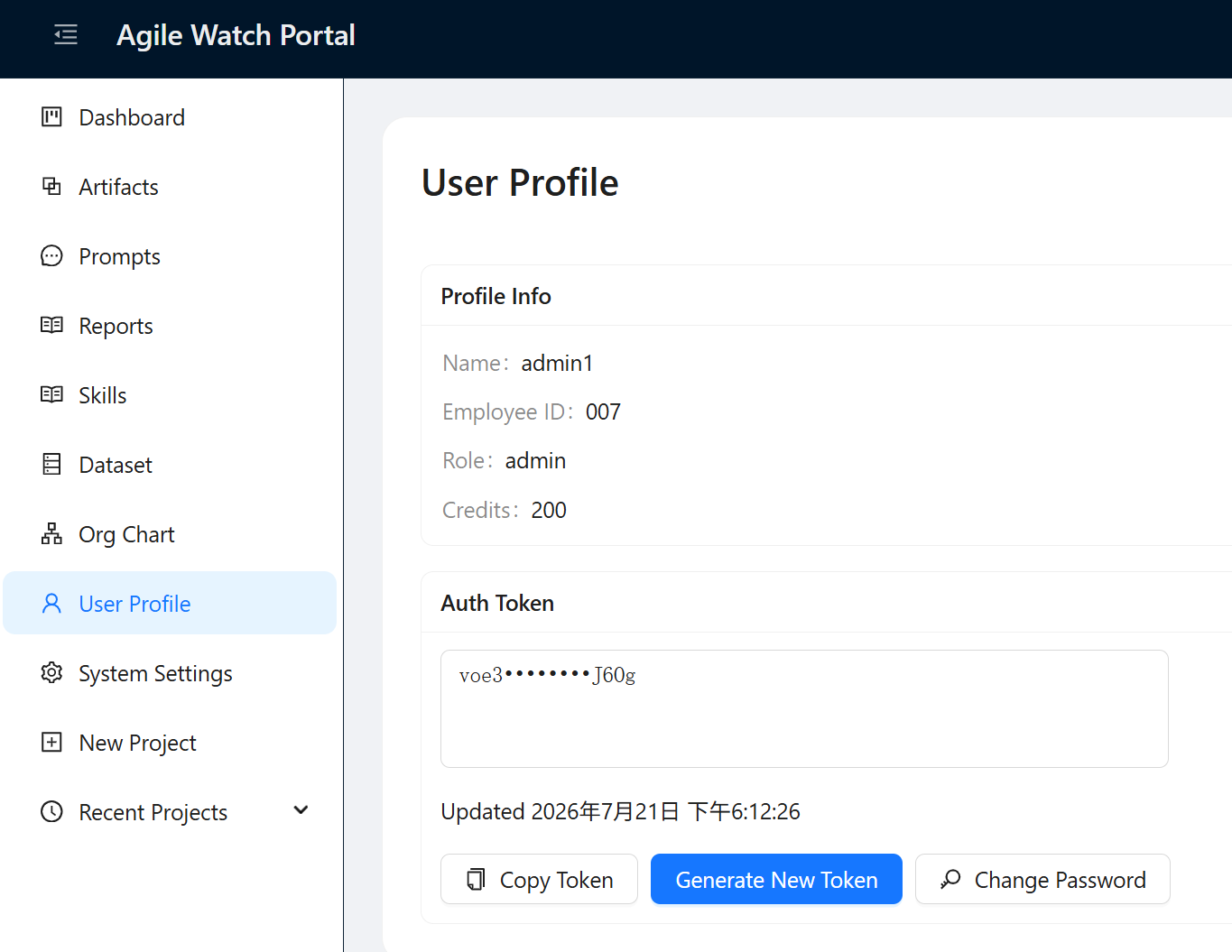
Click Copy Token — you'll need it for the MCP configuration below.
3. Configure Your MCP Client
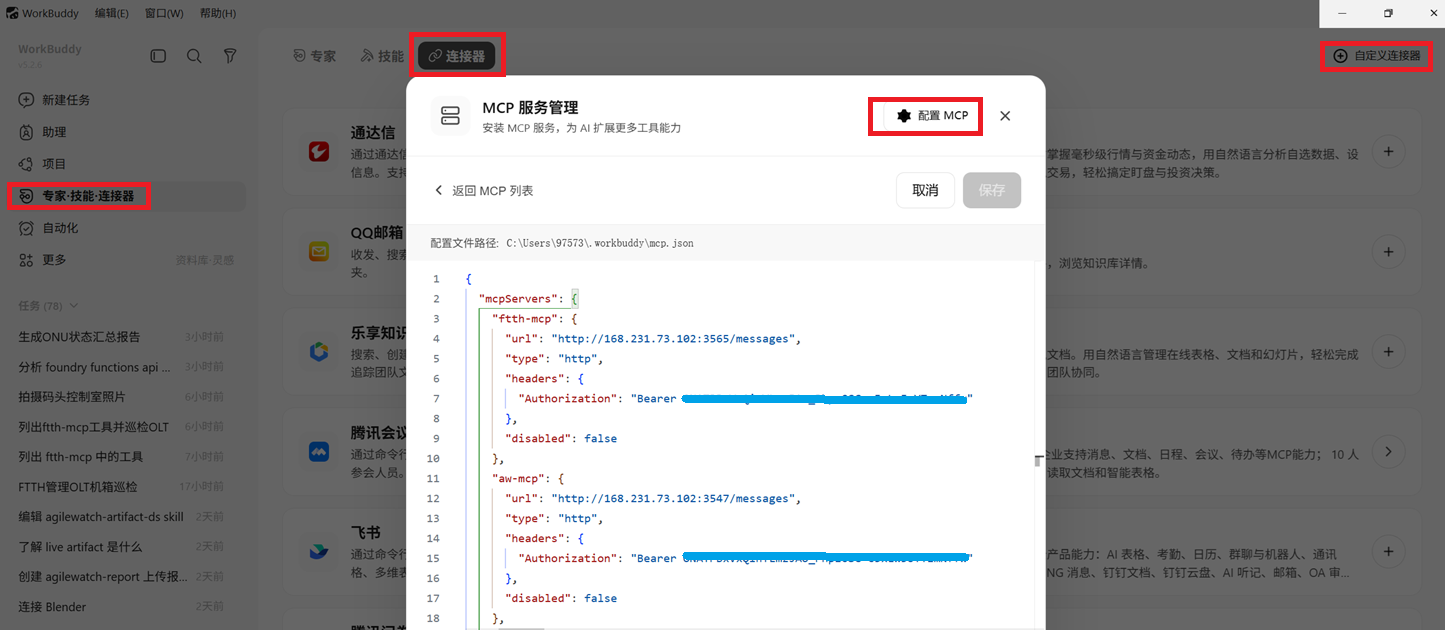
In WorkBuddy — add the MCP server URL and auth token: Please only replace the blue are text with your auth token.
4. Verify Connection
After saving, restart your MCP client. The AgileWatch tools should appear in your available tool list. You can verify by asking your agent:
"List tools in ftth-mcp or aw-mcp "
If you see your tools returned, the connection is working correctly.